QR code document verification works by printing a QR code on the certificate that opens a unique verification page for that exact record. Anyone who scans it sees the issuer's own confirmation of who earned the certificate, for what, and when. Because the answer comes from the issuer's page rather than from the document itself, a forged or edited certificate cannot pass the check.
This guide explains how a QR code certificate verification system works, what verifiers actually see, how to place the code, and the mistakes that make verification unreliable.
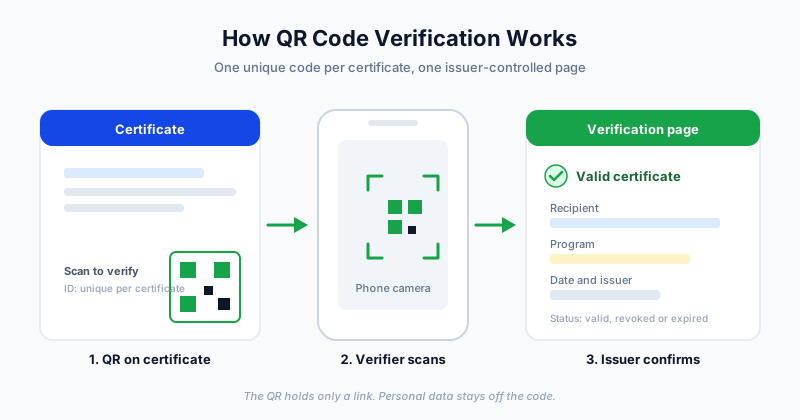
How QR Code Certificate Verification Works
The idea is simple: instead of asking someone to trust the paper or PDF in front of them, you let them check the source.
- A unique ID is created for every certificate. It might look like a short reference code, and no two certificates share one.
- The ID is attached to a verification URL. For example, a page address that ends in that certificate's reference.
- The URL is encoded as a QR code and placed on the certificate.
- A verifier scans the code with any phone camera.
- The verification page loads and shows the issuer's record for that ID.
The QR code is just a carrier for a link. All the trust lives on the page it opens. That is why the system works for both PDFs shared by email and printed certificates pinned to a wall.
What the Verifier Sees
A good verification page answers three questions in a few seconds: is this real, who is it for, and what does it prove. It typically shows:
- The recipient's name
- The program, course or event title
- The issue date (and expiry date, if the certificate expires)
- The issuing organization
- The certificate ID
- A clear status such as valid, revoked or expired
Keep the page short and mobile-friendly. Employers, admissions teams and event organizers usually check one certificate quickly, often on a phone. For a broader look at the checks a verifier can run, see how to verify digital certificate authenticity.
Placement and Size on the Certificate
Where you put the QR code on a certificate affects whether people actually use it.
Placement
- Bottom-left or bottom-right corner works well because it stays out of the way of the name, title and signature.
- Add a short label, for example "Scan to verify", so people know what the code is for.
- Avoid placing it on a busy background, texture or gradient.
Size
- Around 2 to 2.5 cm (about 0.8 to 1 inch) square is a sensible starting point for a printed certificate.
- Leave a plain margin around the code, often called the quiet zone, so scanners can find its edges.
- Use dark code on a light background with strong contrast.
Always test. Scan a printed sample on at least two or three different phones, in normal room lighting, before you send a full batch. If you also deliver by email, check that the QR code still scans from a phone screen and not only from paper.
Security Basics
A QR code is not a security feature by itself. It is only as trustworthy as the system behind it. Get these basics right:
- One unique ID per certificate. Never reuse a single QR code across a whole cohort. A shared code cannot tell a real recipient from a copied name.
- No personal data inside the QR code. Anyone can read what a QR code contains. Put only a link with the certificate ID in it, and show details on the verification page.
- Do not put guessable IDs in the link. Sequential numbers like 1001, 1002 and 1003 invite people to try other values. Use IDs that are hard to guess.
- Control what the page reveals. Show only what a verifier needs. Skip addresses, phone numbers, birth dates and detailed marks unless the recipient has agreed to share them.
- Support revoking. If a certificate was issued in error, the page should be able to show that it is no longer valid.
- Use HTTPS. The verification page should load over a secure connection so the link cannot be quietly swapped.
What Makes Verification Trustworthy
Verification is only useful if people believe the page. A few things help:
- It lives on a domain the issuer controls or a clearly named platform. Verifiers should be able to tell whose record they are looking at.
- It matches the certificate exactly. Name, program and date on the page must equal what is printed. Any mismatch should read as a warning.
- It stays available. A certificate issued today may be checked years from now. Do not point QR codes at a temporary page or a personal file link.
- It is easy to read. Plain wording and a clear valid status beat clever design.
If you are comparing tools that handle this for you, our guide to digital credential management platforms covers what to look for.
Common Mistakes to Avoid
- Pointing the QR code at a PDF. A PDF can be edited and re-uploaded, so it proves little. Link to a verification page instead.
- Using one QR code for every certificate. It verifies nothing about an individual.
- Encoding the recipient's details in the code. This exposes personal data to anyone who scans.
- Making the code too small or too low contrast. If it fails on the first scan, most people will not try again.
- Using a free URL shortener. Short links can expire or be taken down, which breaks every certificate you issued.
- Not testing printed copies. Screens and printers behave differently, so check both.
- Forgetting to tell people it exists. Add the "Scan to verify" label and mention it in the delivery email.
Setting It Up in Bulk
Creating a unique code by hand for each certificate does not scale beyond a handful of people. With a bulk tool, the process is:
- Design or choose a certificate template with a QR placeholder.
- Upload a spreadsheet (CSV or Excel) with each recipient's name, email and program details.
- Generate certificates so each one receives its own certificate ID and QR code.
- Email them out and track delivery.
For a deeper walkthrough of how verified certificates fit into the full workflow, read our QR verified certificates guide.
Getting Started
A QR code on a certificate is a small addition that turns a static document into something anyone can check in seconds. The key is a unique ID per certificate, a clean verification page and a code that scans reliably.
SendCertificates adds a unique QR verification code to each personalised certificate, then emails them in bulk from a spreadsheet and tracks delivery. You can start free with 50 credits and test the scan on your own phone first.
Related Guides
Tags