Why Auto-Generate Certificates From a CSV?
If you have ever issued certificates one at a time, you know the math gets brutal fast. Twenty certificates take an afternoon. Two hundred takes a week. Two thousand takes a month of full-time work, and somewhere along the way, you will misspell a name, attach the wrong file, or send to the wrong person.
Auto-generating from a CSV solves all of this. You design the certificate once, prepare a spreadsheet of recipients, and the platform produces a personalized certificate for every row in seconds. Most platforms also email each certificate directly to its recipient automatically.
This guide walks through exactly how to do it - what the CSV should look like, how the template setup works, and how to deliver the finished certificates at scale.
Step 1: Prepare Your CSV File
The CSV is the source of truth. Get it right and everything downstream is automatic.
Minimum required columns:
| Full Name | |
|---|---|
| Priya Sharma | priya@example.com |
| Rahul Mehta | rahul@example.com |
| Sneha Patel | sneha@example.com |
Recommended columns for richer certificates:
| Full Name | Course | Completion Date | Hours | Score | |
|---|---|---|---|---|---|
| Priya Sharma | priya@example.com | Digital Marketing | 2026-04-10 | 40 | 92% |
| Rahul Mehta | rahul@example.com | Digital Marketing | 2026-04-10 | 40 | 88% |
CSV file rules:
- First row must be column headers (no merged cells, no titles above the headers)
- Column names should be simple and descriptive (use "Full Name" not "Name of Recipient (as on official ID)")
- Save as
.csvformat (not.xlsx) for maximum compatibility, though most platforms accept both - Use UTF-8 encoding so special characters and accents render correctly
- One row per recipient, no blank rows in between
- Email addresses must be valid and one per row
- Dates should be in a consistent format (ideally YYYY-MM-DD)
Common CSV mistakes to avoid:
- Merged cells from a copy-paste from a Google Sheet
- Trailing whitespace in names (causes formatting glitches on the certificate)
- Multiple emails in one cell separated by commas (each recipient needs their own row)
- Special characters that the encoding does not handle (test one row first)
Step 2: Design the Certificate Template
Once your CSV is ready, design the certificate template. The template uses placeholders that get replaced with data from each row of the CSV.
Here is what a template with placeholders looks like - the highlighted areas are dynamic fields that get replaced with data from each row of your CSV:
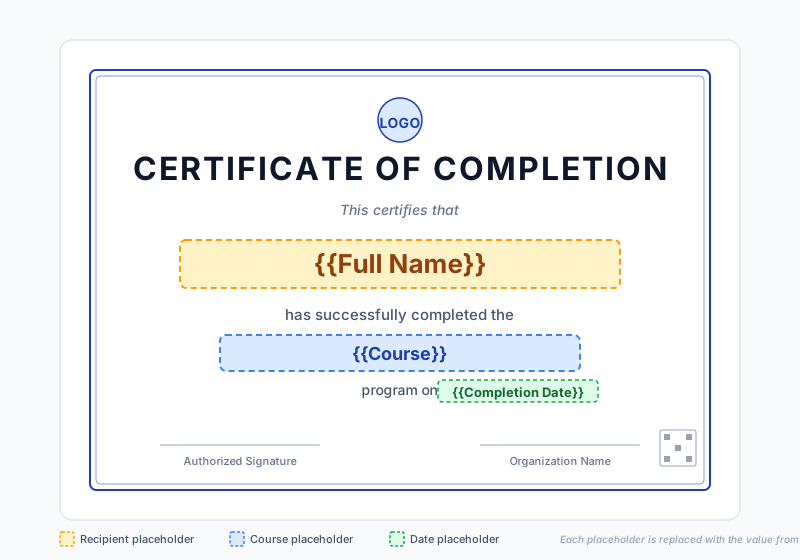
When the platform processes your CSV, it replaces every Full Name placeholder with the value from the "Full Name" column for that row, every Course placeholder with the course value, and so on. You design the template once, and 1,000 personalized certificates come out the other side.
Design tips:
- Use a clean, professional layout - logo at top, recipient name as the focal point, signature at the bottom
- Match column names exactly - if your CSV column is "Full Name" but your template uses
{{Name}}, the placeholder will not be replaced - Test with one row first - generate a single sample certificate before processing the full list to catch formatting issues
- Account for long names - leave room for names that might be longer than your test row
- Add a QR code placeholder - for verification, the platform will generate a unique QR for each certificate
For more on design best practices, see how to design professional certificates.
Step 3: Upload, Generate, and Send
This is where automation does the heavy lifting.
With SendCertificates:
- Upload your CSV - drag and drop the file into the upload area
- Map columns to placeholders - the platform shows you a preview of the column mapping; confirm or adjust if needed
- Preview - check 2-3 sample certificates to verify formatting before processing the full batch
- Generate - the platform processes the CSV and produces a personalized PDF certificate for every row
- Send - certificates are automatically emailed to the address in each row, with a unique QR verification code for each
- Track - the dashboard shows who received, opened, and downloaded their certificate
The whole process for 500 certificates takes about 2 minutes. For the full bulk-sending walkthrough, see how to send certificates in bulk.
What to Include in the Email Delivery
When auto-sending certificates, the email itself matters. A bare email with just an attachment looks suspicious and gets ignored.
A good certificate delivery email includes:
- Personalized greeting - "Hi Priya," not "Dear Recipient"
- Brief context - what the certificate is for
- The certificate as PDF attachment - or a download link
- Verification information - mention that the certificate is QR-verified
- Your organization's signature block - so the email looks legitimate
For email best practices, see certificate email delivery best practices.
Common Use Cases for CSV-Based Certificate Generation
This workflow is ideal whenever you have a list of people who need a similar certificate:
- Online course providers - end-of-course certificates for every student in a cohort
- Schools and universities - course completion or program participation certificates
- Webinar and event organizers - attendance certificates after a session
- Corporate L&D teams - training completion certificates for employees
- NGOs and volunteer programs - community service hour certificates for volunteers
- Hackathons and competitions - participation and winner certificates
- Internship programs - completion certificates for interns at the end of their term
Anywhere a manual workflow exists, a CSV-based automation cuts the work to minutes.
Common Mistakes When Auto-Generating Certificates
- Skipping the preview step - always generate 1-2 sample certificates first to check spacing, font sizes, and column mapping before processing the full batch
- Wrong column names - if your placeholder is
{{Full Name}}but your column header isname, the certificate will have a blank where the name should be - Special characters not encoded - names with accents, apostrophes, or non-Latin scripts need UTF-8 encoding
- Sending without verification - certificates without QR codes or verification IDs are increasingly questioned by employers and schools
- No tracking - if you do not track delivery, you will not know who never received their certificate
Start Automating Today
SendCertificates gives you 50 free certificate credits. Upload a CSV, generate personalized certificates, and email them automatically - the entire workflow takes about 5 minutes from start to finish.
For more on broader automation, see automate certificate generation and distribution and certificate automation for LMS platforms.
Related Guides
Tags