Issuing certificates to a handful of people is easy. Certifying everyone who attended a conference, workshop, or webinar - sometimes hundreds of people - is where most organizers get stuck. This guide shows you how to certify event participants at scale, from collecting the right attendee data to bulk-generating and emailing verified certificates in a single run.
Why Event Certificates Matter
A certificate is one of the few tangible things an attendee keeps after your event ends. It reinforces the value of what they learned, gives them something to add to a CV or LinkedIn profile, and keeps your brand in front of them long after the session is over.
For accredited or professional events, certificates do more than that - they document attendance for continuing education, compliance, or membership requirements. That is why getting the process right matters: a slow, error-prone certificate workflow undercuts an otherwise great event. If you are new to the format itself, start with our event certificate guide.
The 4-Step Workflow
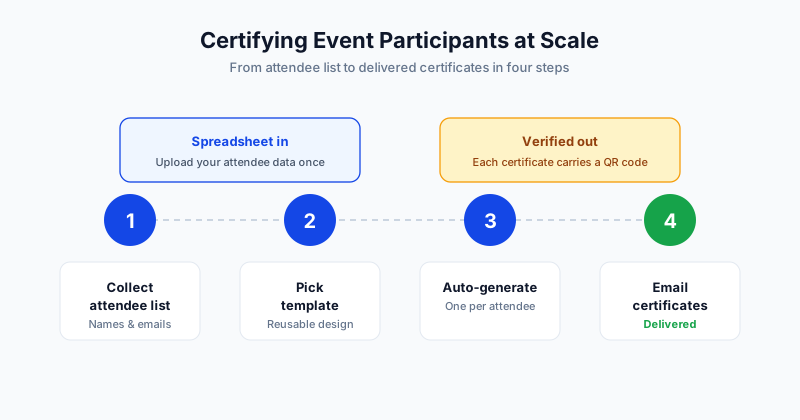
Certifying participants at scale comes down to four repeatable steps. Once you have done it once, every future event follows the same path.
| Step | What you do | Output |
|---|---|---|
| 1. Collect attendee list | Gather names and emails from registration or attendance reports | A clean spreadsheet |
| 2. Pick template | Choose or design a certificate that matches the event | A reusable template |
| 3. Auto-generate | Upload the list and map columns to template fields | One certificate per attendee |
| 4. Email certificates | Send personalized, verifiable certificates in bulk | Delivered to every inbox |
Each step is simple on its own. The win comes from doing them in sequence with a tool that handles the volume for you, rather than editing a slide deck name by name.
Step 1: Collect the Attendee List
Your certificate is only as accurate as the data behind it, so this step is the one to get right. Pull your list from wherever attendance lives:
- Registration platform - exports of confirmed and checked-in attendees
- Webinar tool - the post-session attendee report (Zoom, Teams, GoToWebinar)
- Sign-in sheets - transcribed into a spreadsheet for in-person events
At a minimum, capture each person's full name and email address. Add columns for anything you want printed on the certificate: session title, hours attended, a CEU value, or a completion score. Clean the data before you move on - fix obvious typos in names, remove duplicate rows, and confirm every row has a valid email.
Step 2: Pick or Design a Template
Choose a template that reflects the event. For a professional conference that means your logo, the event name, and a clean, formal layout. For a community workshop you have more room to be creative.
Whatever you choose, the template should include placeholder fields that get filled automatically from your spreadsheet - the recipient name, the event title, and the date at minimum. The most important visual rule is to make the recipient name the most prominent element, since that is what attendees look at first. A well-built template is reusable, so you set it up once and use it for every future event.
Step 3: Auto-Generate Every Certificate
This is where scale happens. Instead of duplicating a file and retyping each name, you upload your attendee spreadsheet to a bulk certificate platform and map each column to the matching field on your template.
The platform then generates one unique certificate per row. Five hundred attendees means five hundred personalized certificates, created in the time it takes to make one by hand. Because every field fills from your data, you avoid the transcription errors that creep in during manual editing. With SendCertificates, this generation step runs in a single pass over your uploaded file.
Step 4: Email Certificates in Bulk
Generating the files is only half the job - attendees still need them. A good workflow emails each certificate directly to the address in your spreadsheet, so every participant receives their own document without you sending hundreds of individual messages.
Look for these capabilities when sending at scale:
- Personalized delivery - each email goes to the right person with their own certificate
- Verification built in - a QR code or link so the certificate can be confirmed as genuine
- A delivery record - confirmation of who received their certificate, useful for follow-up
Sending the same day the event ends is a small touch that makes a big impression on attendees.
Handling Webinars Specifically
Webinars are the most common at-scale certification case because the attendance data is already structured. Your webinar platform produces an attendee report with names, emails, and time in session. That report is essentially your spreadsheet already.
Many teams add a simple rule - for example, only certify attendees who stayed for a minimum duration - then export that filtered list and bulk-generate. For the full automated approach, see our guide on webinar certificates and how to automate issuance.
Common Mistakes to Avoid
A few pitfalls turn an easy job into a stressful one:
- Dirty data - misspelled names and bad emails mean reprints and bounced deliveries. Clean the list first.
- No verification - certificates with real value should be confirmable. Skip verification and you invite disputes.
- Manual editing at volume - editing a template by hand past a dozen people wastes hours and introduces errors.
- Waiting too long - the longer you wait after the event, the less the certificate means to the attendee.
Getting Started
Certifying event participants at scale is a four-step routine: collect a clean list, pick a template, auto-generate, and email. Set it up once and every future event becomes a few minutes of work instead of an afternoon.
SendCertificates lets you upload your attendee spreadsheet and bulk-generate personalized, QR-verifiable certificates that email straight to each participant - with 50 free credits to start. For larger sends, see our step-by-step guide on how to send bulk certificates.
Related Guides
Tags